
Operator Portal
Room inventory, reservations calendar, pricing loadings, deposit policy, and financial reports.
Operator Sign In
Enter the management passphrase to access room inventory, guest bookings, and financial reports.
📅 Occupancy & Vacancy Overview
Loading 14-day overview…
Room Calendar
Block Nights or Add Reservation
Accommodation Inventory & Base Rates
Update standard base nightly rates, guest capacity, and room amenities stored in live D1.
Loading room catalog…
Pricing Loadings & Seasons
Priority stacking order: 1. Season rate/multiplier → 2. Day-of-week loading → 3. Public holiday loading → 4. School holiday loading. All prices include GST and round to nearest 50c.
Holiday Stacking Rule
Choose what happens when a stay date falls on BOTH a Public Holiday and School Holiday period:
Day-of-Week Loadings
Percentage adjustment per night based on the day of the week. Sunday defaults to +10%. Any weekday can be configured.
Seasons (Named Date Ranges)
Configured season rates apply first before day or holiday loadings. Rate can be a % adjustment or a fixed dollar override.
| Season Name | Dates (Start → End) | Rate Adjustment | Min Nights | Status | Action |
|---|---|---|---|---|---|
| Loading seasons… | |||||
WA Public Holidays (+15%)
Western Australia official gazetted dates for 2026 & 2027.| Holiday | Date | Loading | Action |
|---|---|---|---|
| Loading public holidays… | |||
WA School Holidays (+10%)
WA Department of Education term breaks for 2026 & 2027.| Holiday Period | Dates | Loading | Action |
|---|---|---|---|
| Loading school holidays… | |||
Deposit & Cancellation Policy Settings
Configure deposit requirements, balance due schedule, and cancellation refund tiers. These rules govern guest checkout and automated refund calculations.
Financial & Operational Reports
Performance metrics, revenue by loading type, room occupancy, upcoming stays, and accountant CSV export.
Revenue by Loading Type
| Loading revenue… |
Occupancy % by Room Category
| Room Category | Nights | Occupancy % |
|---|---|---|
| Loading occupancy… | ||
Upcoming Arrivals in Period
| Arrive | Guest | Room | Status |
|---|---|---|---|
| No upcoming arrivals. | |||
Outstanding Balances Due
| Guest / Ref | Due Date | Balance Due |
|---|---|---|
| No outstanding balances. | ||
Recent Refund Audit Log
| Date / Time | Booking Ref | Guest | Amount | Policy Match | Override Reason | Staff |
|---|---|---|---|---|---|---|
| No refunds recorded yet. | ||||||
Automated Cloud Backups
Checking…Worker cron runs every night at 2:00 AM AWST (18:00 UTC). All 9 D1 tables are exported to JSON and CSV, compressed with gzip, and backed up off-site.
- Cloudflare R2 Bucket (
ksrh-backups) — 30 daily + 12 monthly copies - Google Workspace Shared Drive (
KSRH Backups) — 30 days retention - Reception Gmail (daily run sheet PDF & offline pack dispatch)
Reception Local Outage Pack
No Internet NeededReception downloads this pack every afternoon. If the internet or power goes out, staff can view all bookings, room allocations, guest phone numbers, and balances due.
📝 Catch-Up Paper Bookings
When power or internet returns, enter walk-ins or phone bookings taken on paper. The system checks live dates and flags double-booking clashes.
⏱️ D1 Time Travel & Fast Point-in-Time Restore
If a booking was deleted by mistake or data was corrupted, Cloudflare D1 supports Time Travel point-in-time restore (up to 30 days). This takes less than 60 seconds and is the recommended first fix before restoring from R2 archives.
# 1. Inspect bookmarks or timestamps
npx wrangler d1 time-travel info ksrh-booking --remote

# 2. Restore to a specific point in time (e.g. 10:00 AM UTC today)
npx wrangler d1 time-travel restore ksrh-booking --remote --timestamp="2026-09-30T10:00:00Z"docs/disaster-plan.md. Restore script: ./scripts/restore.sh <backup.json.gz> Booking System Control & Mode
Toggle between direct email inquiry mode (while the calendar is being populated) and live automated calendar booking.
King Sound Resort Hotel — Operator Manual
v0.3.0 · #ver 2026-10-15 09:21 AEST
For Wayne and the reception team. Manual version 1.2, 1 October 2026.
This manual explains the booking admin for the hotel website. Each part is short and has clear steps. The pictures use made-up guests and sample data.
Something broken or need help? Call Colin Dixon on 0419 415 000.
Contents
- Quick start
- Logging in
- The screen at a glance
- Booking mode: email or live calendar
- The notification email
- Enquiries and KSRH numbers
- Turning an enquiry into a confirmed booking
- Adding a booking yourself
- Blocking dates
- Cancelling or changing a booking
- Rooms and rates
- Changing the password
- Payments, deposits and refunds
- Features coming soon
- Who to call
1. Quick start
Daily reception checklist:
- Open the admin portal at https://ksrh.oze.au/admin and log in.
- In Upcoming Stays & Requests, look for rows marked Pending Request.
- Check the room is free on the Room Calendar.
- If there is a red ⚠️ Calendar Clash badge, the dates overlap with an existing stay.
- Press Confirm to lock in the reservation, or Cancel/Free to decline.
- If deposits are turned on: click 💳 Create Payment Link, copy the link, and email it to the guest.
- Check the reception inbox (info@kingsoundresort.com.au) for direct emails sent by guests.
2. Logging in
The admin address is https://ksrh.oze.au/admin (staging preview). It will switch to the hotel’s live web address once Wayne approves.
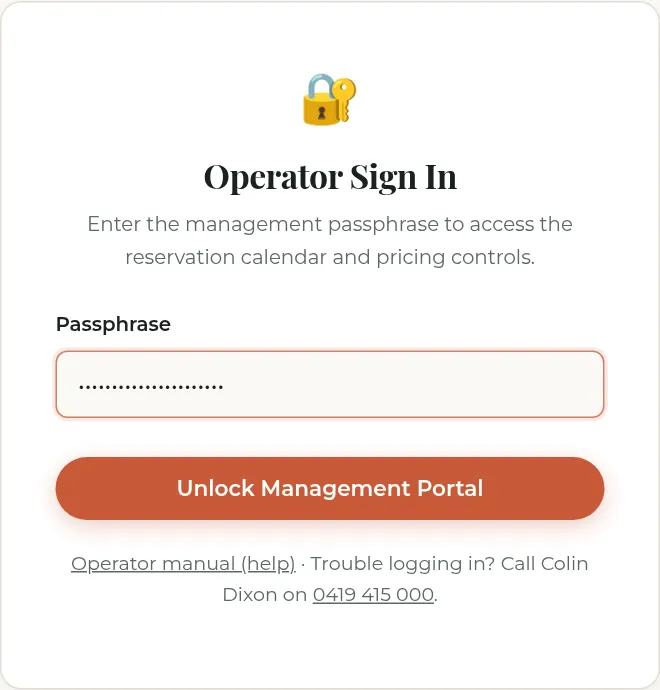
- Open the admin address in your web browser.
- You will see Operator Sign In.
- Type the password into the Passphrase box.
- Press Unlock Management Portal.
Good to know:
- Colin gives you the password. It is never written in this manual. Never write it on a sticky note.
- You stay logged in on your browser for 7 days.
- Press Log Out (top right) when finished on a shared reception computer.
- “Incorrect passphrase. Please try again.” means the password was entered incorrectly. Check Caps Lock.
- “The operator portal is disabled…” means the server password setting is missing or too short. Call Colin.
3. The screen at a glance
After logging in, you will see four tabs across the top:
- 📅 Bookings & Availability: Room calendar, booking & block form, and the list of upcoming stays.
- 🏷️ Rooms & Pricing Setup: Room names, nightly rates, amenities, and room status.
- ⚙️ Booking Mode & Settings: Switch between Email Inquiry Mode and Live Calendar Mode, plus Stripe deposit settings.
- ❓ Help: This operator manual.
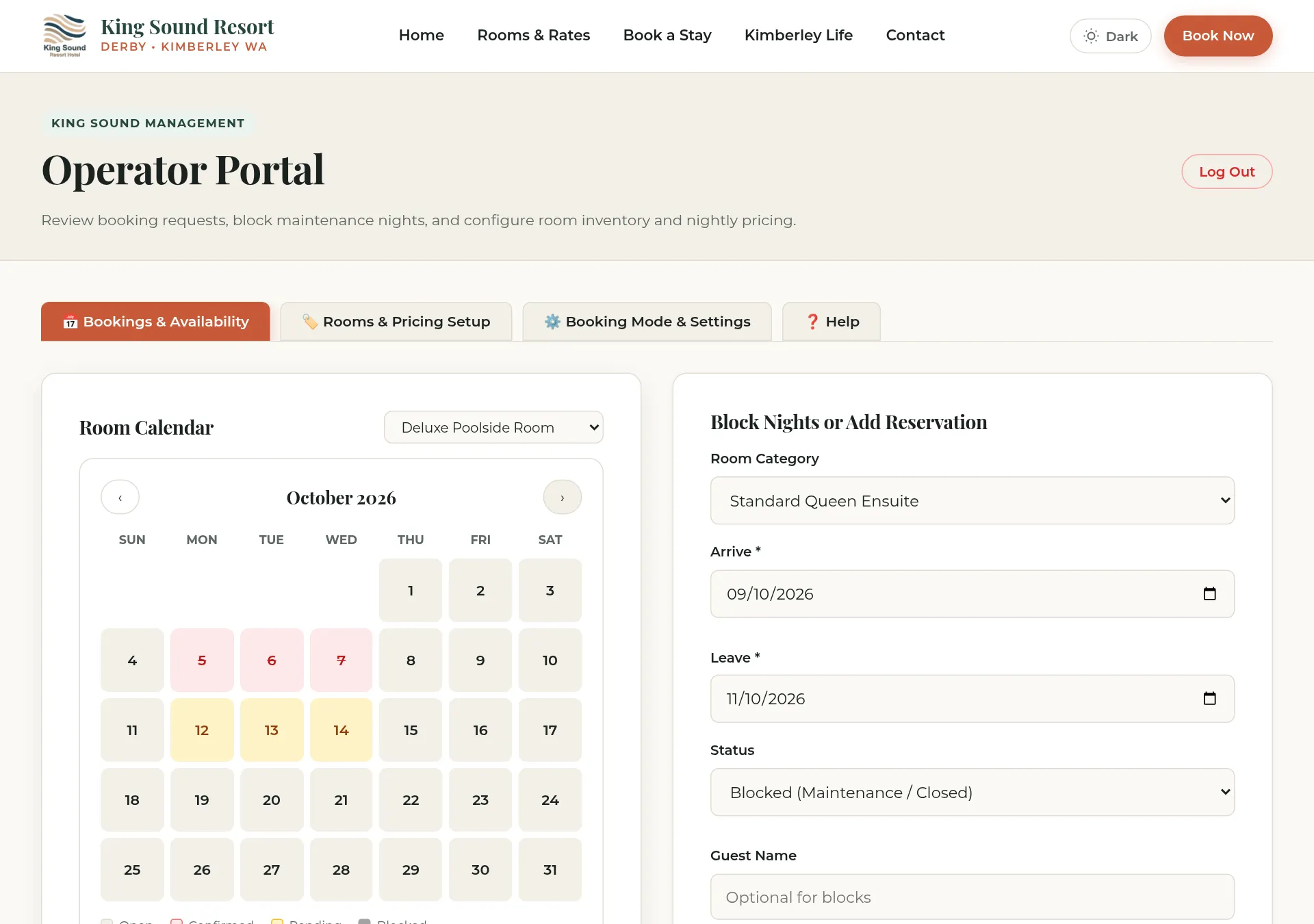
Occupancy & Vacancy Overview Grid:
At the top of the Bookings & Availability tab is an interactive multi-week occupancy overview:
- Dates across the top: View either 2 Weeks (14 Days) or toggle to 1 Week (7 Days). Use ◀ Prev, Today, and Next ▶ or the date picker to jump directly to any date or season.
- Two View Modes:
- 🏷️ Categories & Vacancies: Shows combined resort occupancy across all 50 rooms, plus bold vacancy badges for each of the 5 categories (🟢 3+ Vacant, 🟡 1–2 Vacant, 🔴 Full). Click any date cell to inspect in-house guests, allocate physical rooms, or book.
- 🔑 Rooms 01–50: Shows individual physical room doors (01 to 50), with guest stay pills, check-in indicators (
▶), and an ⚠️ Unallocated Queue alert row for guests awaiting room assignment. Click any vacant cell to immediately pre-fill a new reservation for that room!
Using the Room Calendar:
- Pick a room from the drop-down list.
- Use ‹ and › to change months.
- Colours show: Open (white/light), Confirmed (green), Pending (ochre/amber), and Blocked (grey).
4. Booking mode: email or live calendar
The website has two booking modes:
✉️ Direct Email Inquiry Mode (Active by default)
- The guest selects dates and fills in their contact details on the website.
- The inquiry is automatically saved in the admin as Pending Request with a unique KSRH reference number.
- The website prepares a ready-made email draft addressed to Wayne and reception, copies it to the guest’s clipboard, and opens their email app.
- Strict calendar conflict checks are bypassed so guests are never blocked while you get room dates up to date.
- You review the dates and confirm or decline.
📅 Live Calendar Booking Mode
- The guest sees live room availability and cannot select dates that are already booked.
- Stays are booked directly into the calendar.
- If online deposits are enabled, the guest is prompted to pay their deposit securely via Stripe before booking is confirmed.
When to switch to Live Calendar Mode:
- Only switch when every current reservation and room block has been entered into the calendar.
- While the calendar is being populated, stay in Direct Email Inquiry Mode.
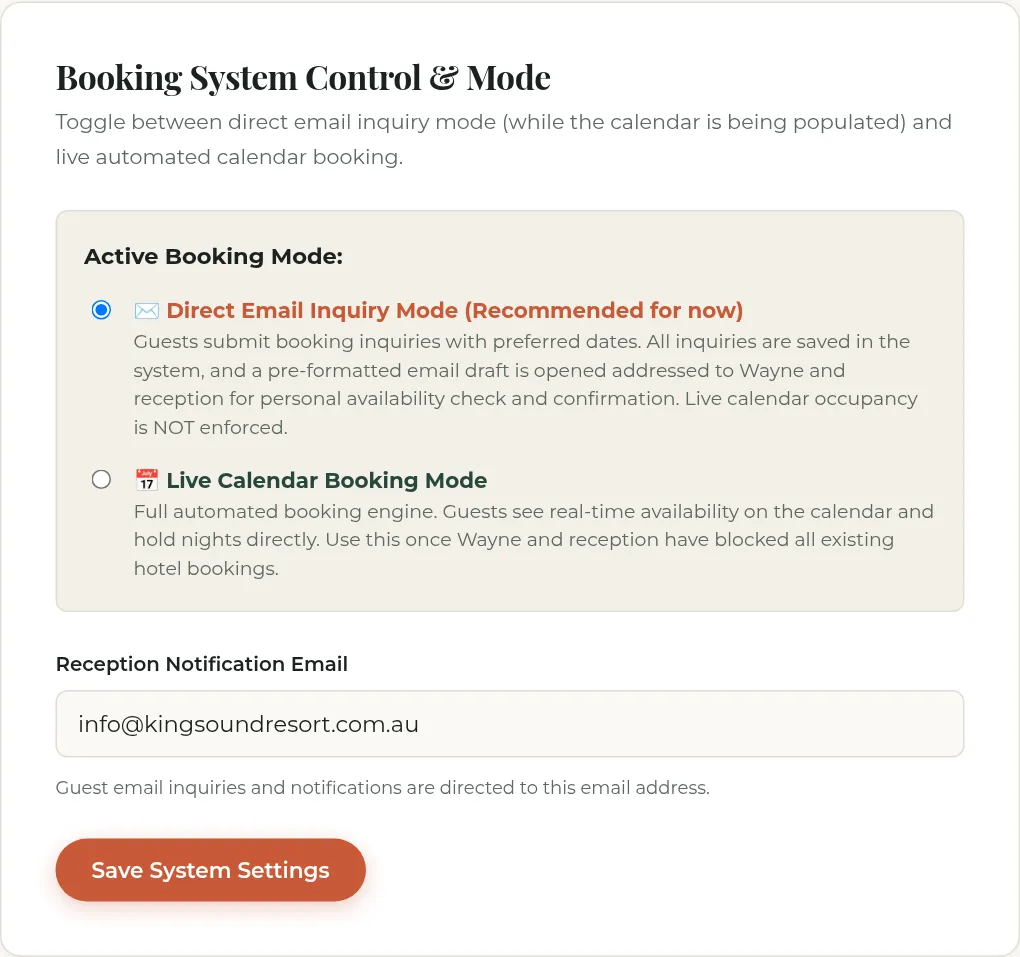
How to switch:
- Click ⚙️ Booking Mode & Settings.
- Select your preferred mode.
- Press Save System Settings. The website updates immediately.
5. The notification email
This is the address guests send their ready-made booking inquiries to. It defaults to info@kingsoundresort.com.au.
- Click ⚙️ Booking Mode & Settings.
- Update Reception Notification Email (e.g. Wayne’s direct email).
- Press Save System Settings.
6. Enquiries and KSRH numbers
Every online inquiry receives a reference number like KSRH-4821.
- Guests quote this number when emailing or calling reception.
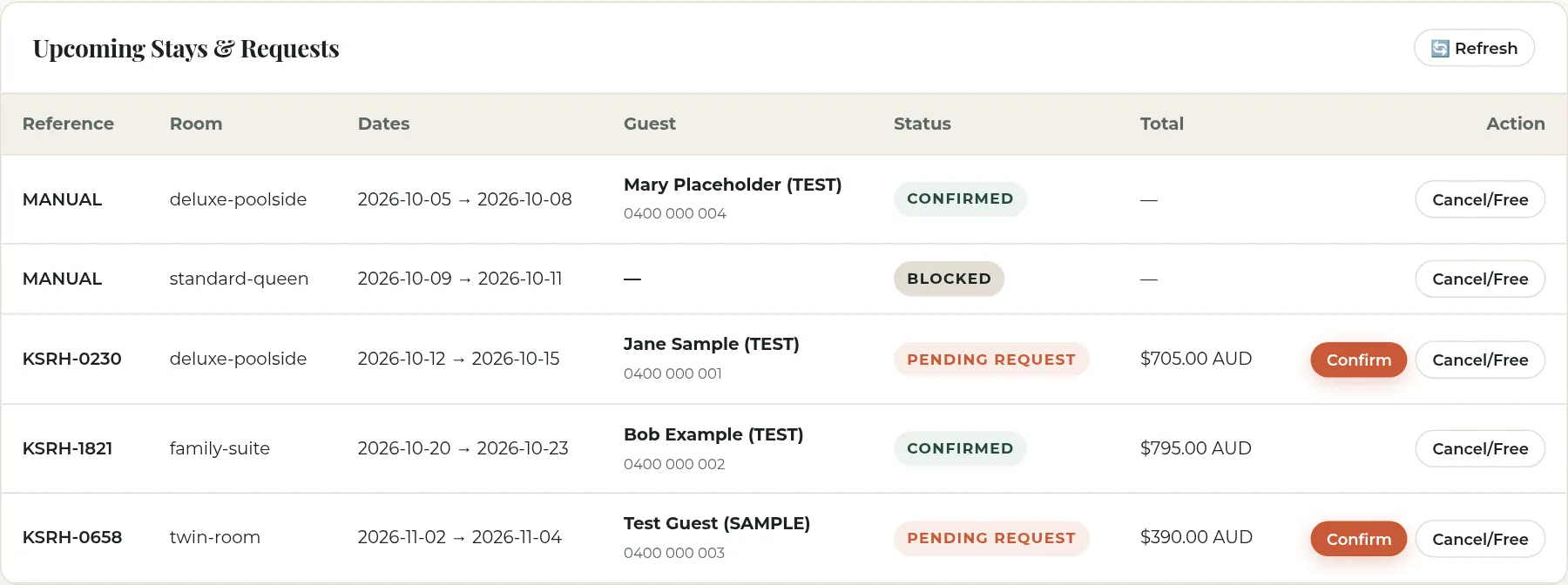
- In Upcoming Stays & Requests, you will see the reference number, guest name, contact details, stay dates, and guest notes.
- If an enquiry dates overlap with an already confirmed booking, a red ⚠️ Calendar Clash warning badge is shown automatically.
7. Turning an enquiry into a confirmed booking
- Click 📅 Bookings & Availability.
- Press 🔄 Refresh to ensure you have the latest list.
- Find the Pending Request row. Check the guest notes and requested dates.
- Verify the room is free on the calendar.
- Press Confirm.
- If there is a date clash with another booking, the system will prevent the confirmation and show an error explaining which booking conflicts.
- Once confirmed, contact the guest by phone or email to confirm their booking.
- If deposit collection is enabled, press 💳 Create Payment Link, copy the link, and send it to the guest.
If you cannot accept the booking:
- Press Cancel/Free on the row.
- Confirm cancellation when prompted.
- Contact the guest to inform them or offer alternative dates.
8. Adding a booking yourself
Use this for phone reservations, walk-ins, or direct emails:
- Click 📅 Bookings & Availability.
- Scroll to Block Nights or Add Reservation.
- Choose the Room Category.
- Select Arrive (first night) and Leave (check-out day).
- Set Status to Confirmed Guest.
- Enter Guest Name, Email, and Phone.
- (Optional) Enter an Allocated Room # (01–99) if already assigned.
- Enter any special requirements or notes into Internal Notes.
- Press Save to Calendar.
Allocating Room Numbers on Check-in (Rooms 01 to 99)
At King Sound Resort Hotel, online guests book a Room Category (such as Deluxe Poolside Room or Standard Queen Ensuite), rather than picking a physical door number in advance.
Specific room numbers (Rooms 01 to 99) are allocated upon guest arrival/check-in at reception:
- In Upcoming Stays & Requests, each stay shows either:
🔑 Room XX(already allocated), or⚠️ Unallocated (Check-in)(waiting for room assignment on arrival).
- Click 🔑 Allocate Room on the guest’s stay row.
- The Room Allocation modal opens with:
- A visual 50-room quick picker (Rooms 01–50) colour-coded for the guest’s exact dates:
- Green (Available): Free for the entire stay window. Click to select.
- Red (Occupied): Taken by another guest (shows who has it booked).
- Palm Green (Current): Currently allocated to this guest.
- A manual Room Number input supporting any number between 01 and 99 (single digits like
7are automatically formatted to07).
- A visual 50-room quick picker (Rooms 01–50) colour-coded for the guest’s exact dates:
- Double-allocation protection:
- If you select a room already booked by another guest on those dates, the system flags a clash and prevents accidental double-allocation.
- If you need to override (e.g. back-to-back same-day turnover or special room moves), tick Force override (intentional duplicate or room move).
- Click Save Allocation.
- To release a room number, click Clear / Unallocate.
9. Blocking dates
Block nights when a room is closed for maintenance, painting, or cleaning:
- In Block Nights or Add Reservation, select the room.
- Enter the first closed night as Arrive, and the reopening day as Leave.
- Set Status to Blocked (Maintenance / Closed).
- (Optional) Add a reason in Internal Notes (e.g. “Air conditioner service”).
- Press Save to Calendar.
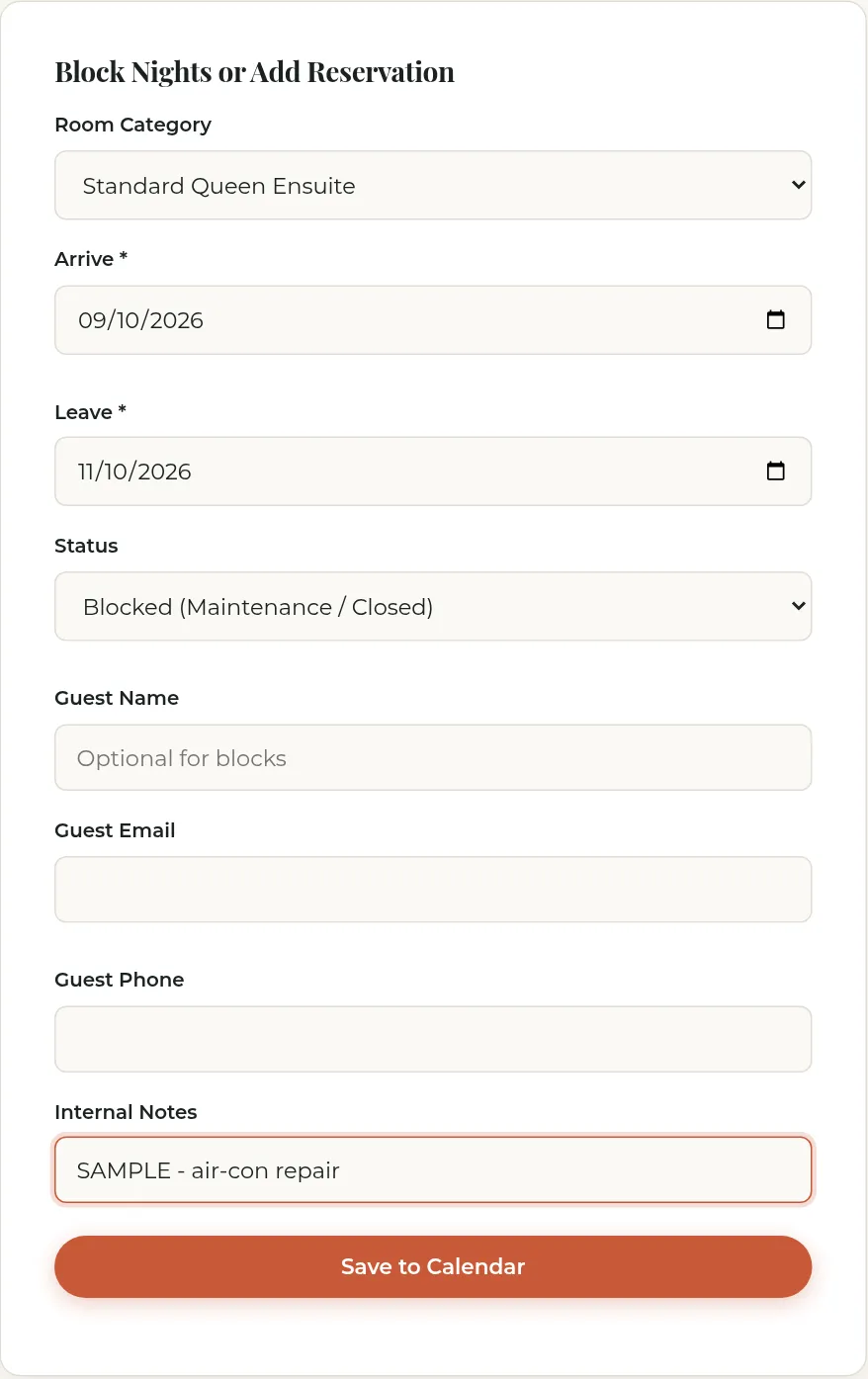
To unblock: Find the blocked row in the list and press Cancel/Free.
10. Cancelling or changing a booking
- To cancel: Click Cancel/Free on any booking row and press OK. The nights are immediately freed on the calendar.
- To change dates: Click Cancel/Free on the old reservation, then re-enter it with the new dates. Include the original KSRH reference in the guest name or notes.
11. Rooms and rates
Click 🏷️ Rooms & Pricing Setup to see all accommodation categories and their nightly rates.
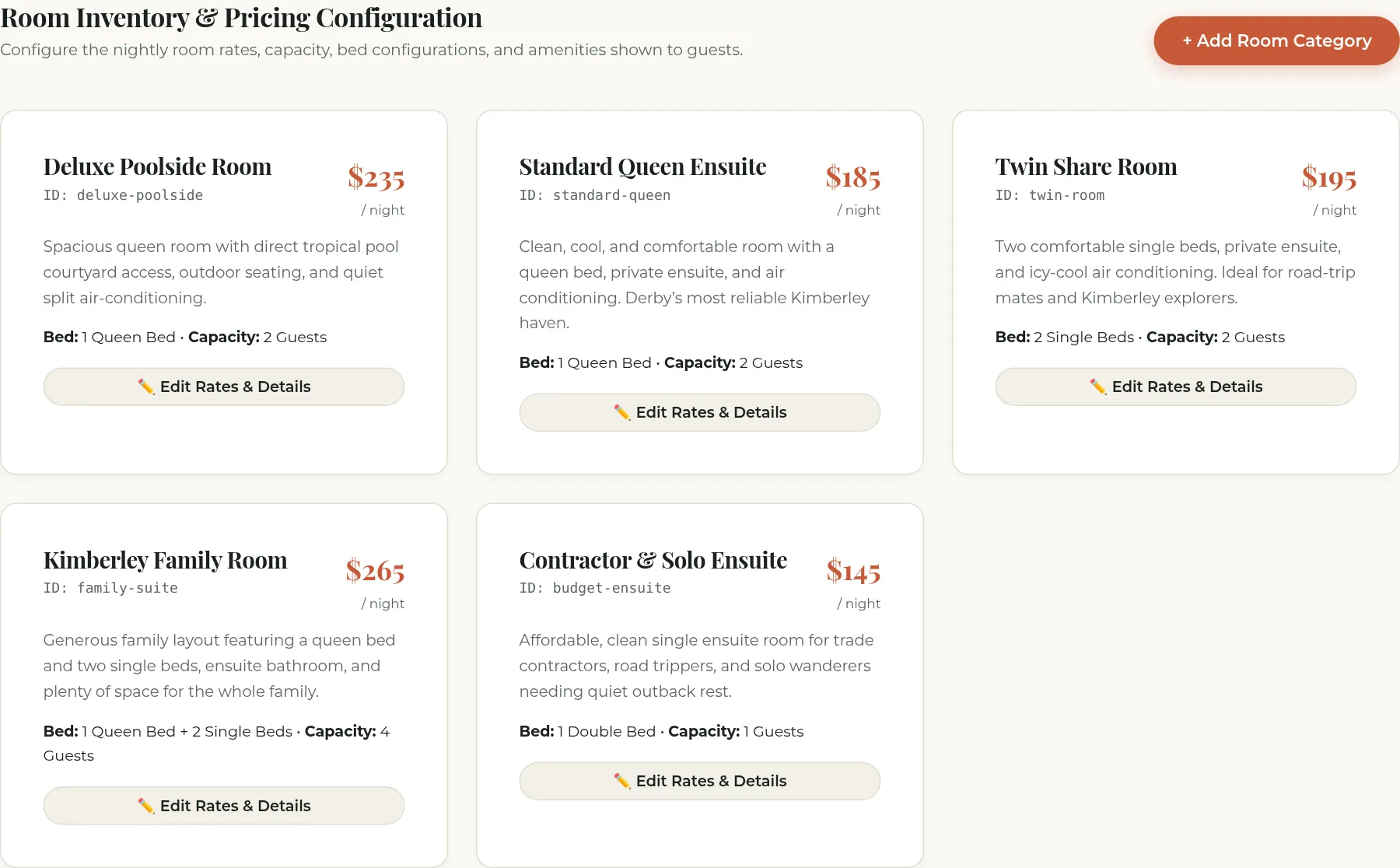
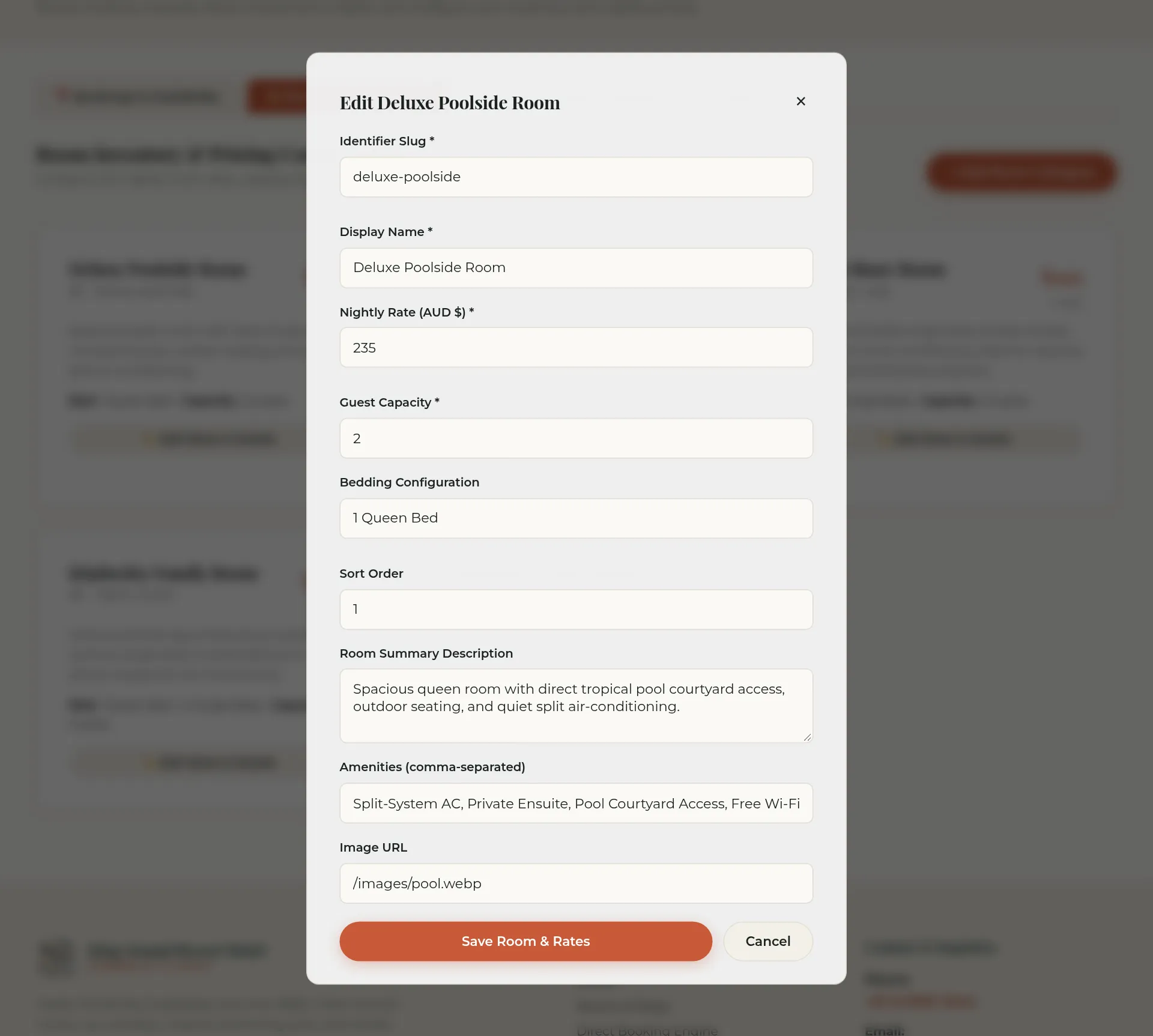
- Press ✏️ Edit Rates & Details on any room.
- Update the Nightly Rate (AUD $), Total Rooms (Inventory), guest capacity, or description.
- You can set Active Status to Active or Deactivated/Hidden.
- Press Save Room & Rates.
Room Inventory & Capacity (~50 Rooms across 5 Categories)
King Sound Resort Hotel operates 5 room categories with a total of ~50 rooms (~10 rooms of each type):
- Deluxe Poolside Room (10 rooms)
- Standard Queen Ensuite (10 rooms)
- Twin Single Ensuite (10 rooms)
- Family Suite (10 rooms)
- Executive King Suite (10 rooms)
Multi-Room Availability:
- The online booking engine and calendar allow concurrent bookings up to the category’s inventory count on each night.
- Once all 10 rooms of a category are booked on a given night, that date is automatically marked unavailable on the public calendar.
- In 🏷️ Rooms & Pricing Setup, click ✏️ Edit Rates & Details to adjust the Total Rooms (Inventory) count for any category if physical inventory changes.
12. Changing the password
For security, the master admin password is held securely in Cloudflare encryption.
- Call or message Colin Dixon on 0419 415 000 to request a password change.
- Colin sets the new passphrase.
- All previous sessions are logged out automatically.
- Reception logs in with the new passphrase.
13. Payments, deposits and refunds
The website supports secure online deposit payments via Stripe Checkout (hosted payments; no card numbers ever touch our website).
Payment Modes (configured in Settings tab):
- Off (Pay at Resort): No online deposit required. Guests pay upon arrival.
- Deposit (First Night): Charges the room’s first night rate upon booking.
- Deposit (Fixed $ Amount): Charges a set dollar amount (e.g. $100.00 AUD).
- Full Payment: Charges the full estimated stay total.
How Deposit Links Work for Inquiries:
- When you confirm a booking inquiry, click 💳 Create Payment Link.
- A Stripe payment link is generated and saved to the booking.
- Click 📋 Copy Link or ✉️ Email Link to send the payment link to the guest.
- The guest opens the link, reviews their stay details and the cancellation policy, and enters their card details securely.
- When payment completes, the booking status automatically updates to Deposit Paid (or Paid in Full) with the exact dollar amount received.
Processing a Refund:
- If a paid booking is cancelled and eligible for a refund, find the booking row.
- Click 💸 Refund.
- The prompt displays the refundable balance. You can issue a full refund or type a custom partial amount.
- The refund is processed instantly through Stripe, and the booking updates to Refunded or Partially Refunded.
Cancellation Policy Placeholder:
- The standard placeholder policy is: “Cancellations made up to 48 hours prior to 2:00 PM check-in date receive a full refund of deposit. Cancellations within 48 hours forfeit the first night deposit.”
- Wayne can review and customize this policy directly in the Settings tab.
Testing Stripe Payments:
- While in test mode, you can test payments using the Stripe test card:
4242 4242 4242 4242with any future expiry date and any 3-digit CVC.
14. Features coming soon
These features are planned and can be prioritized by Colin and Wayne:
- Direct email dispatch from the server (automatic confirmation emails).
- Seasonal and weekend custom rate schedules.
- In-place date editing on existing bookings without cancelling first.
15. Who to call
Colin Dixon — 0419 415 000
Call Colin anytime if:
- You need the admin password reset.
- You see “The operator portal is disabled…”.
- The website or calendar does not respond.
- You have questions about room rates, Stripe deposits, or calendar sync.